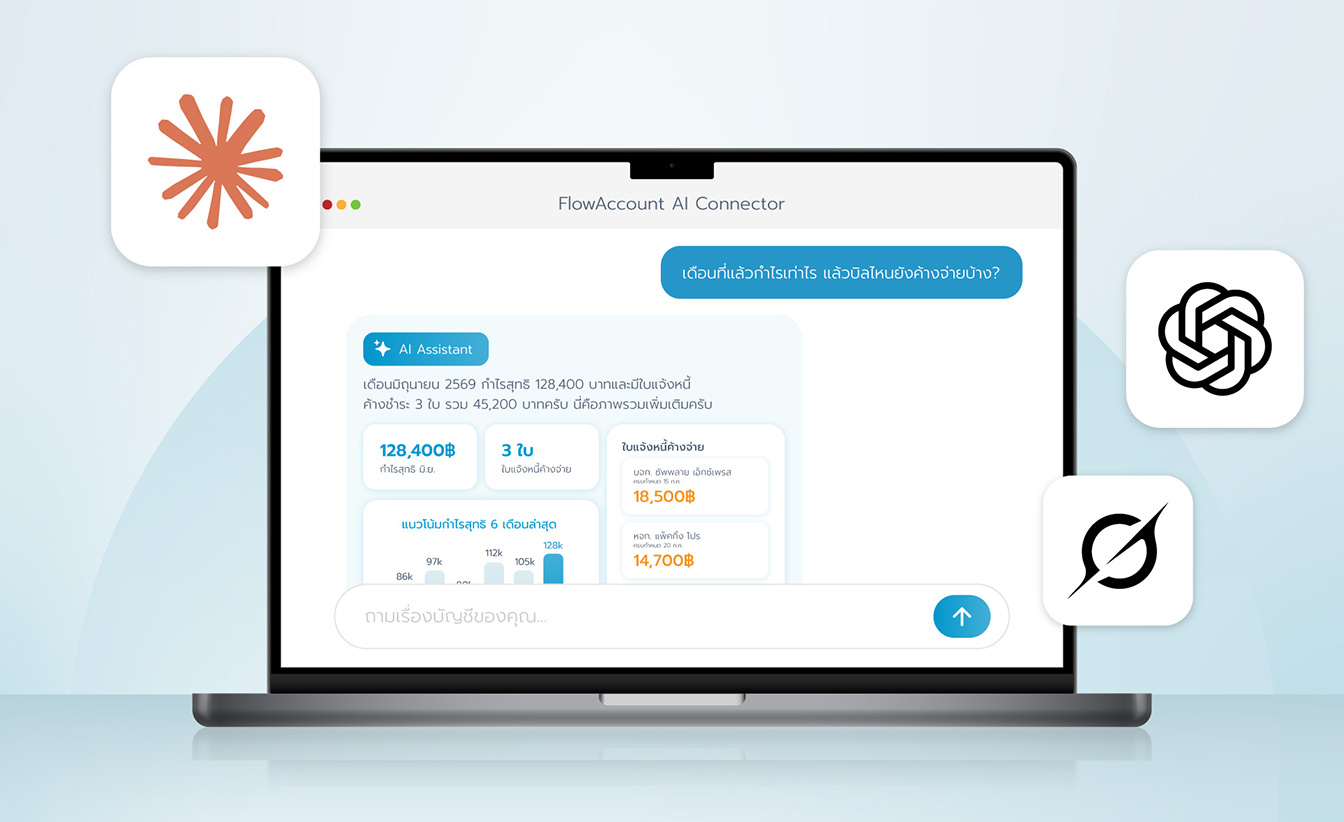








Connect FlowAccount to Grok to get instant financial insights, review your books, and create documents through a simple conversation. The FlowAccount Connector lets you pull live sales, expense, accounting, and inventory data so you can ask Grok questions like "What was my profit last month?" or "Create a new invoice for ABC Co." in plain language. The connector can read your data and create documents. See FlowAccount's Privacy Policy.
Before you start
- A Grok account (grok.com, or Grok in the X app). Connectors are available to all Grok users — no Developer Mode required.
- An active FlowAccount subscription with at least one company set up
- Permission in FlowAccount to view the company's data and create permission if you want the assistant to create documents for you
A note on Grok's features: Grok offers both Skills (reusable instruction/prompt packs) and Connectors (integrations with tools and data). FlowAccount is a Connector — specifically a custom MCP server — so you add it under Connectors at grok.com/skills-and-connectors, not under Skills.
Connect FlowAccount to Grok
Add FlowAccount as a custom MCP connector using its MCP server URL. Connectors are managed at grok.com/skills-and-connectors.
Go to grok.com/skills-and-connectors.
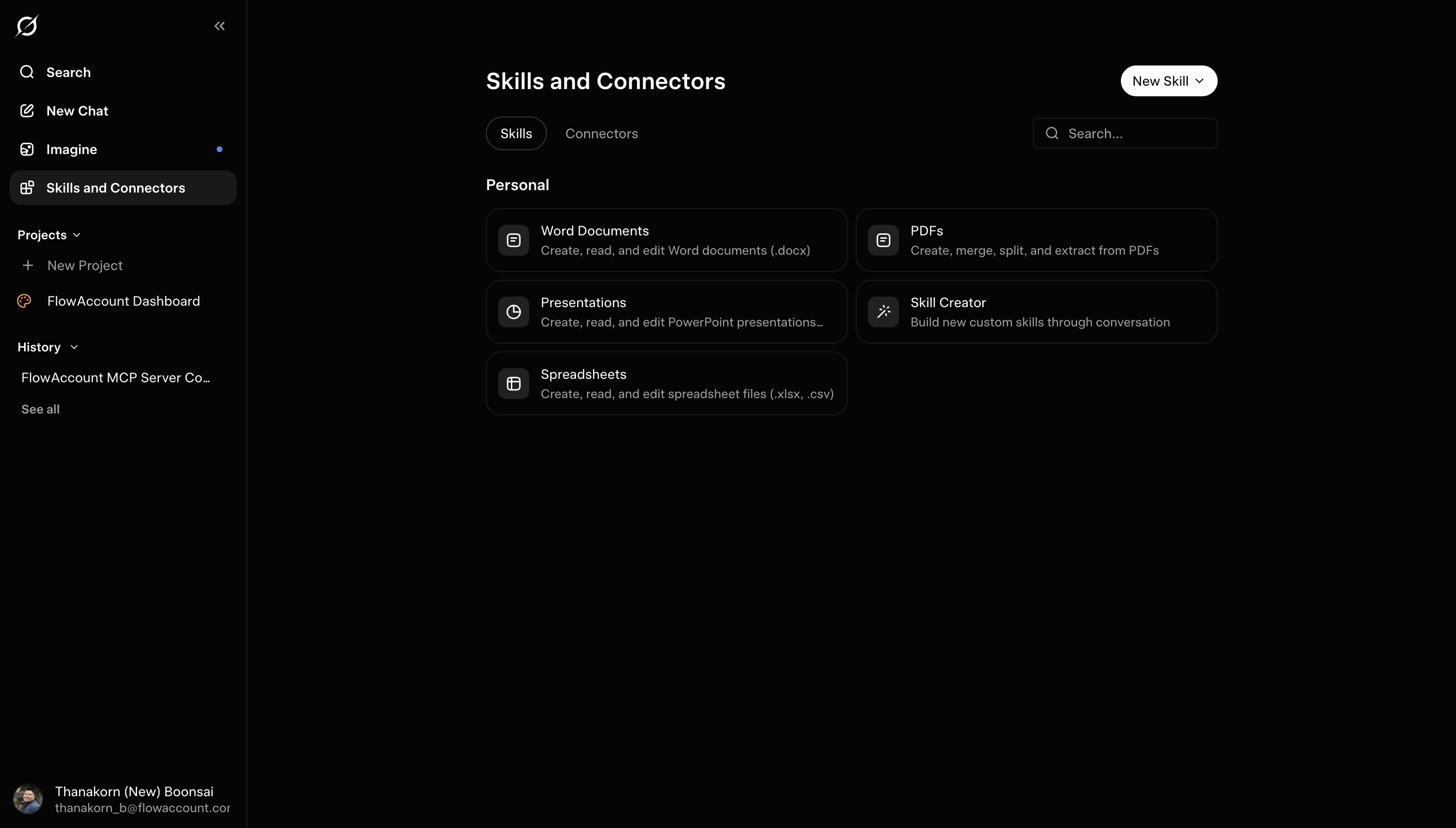
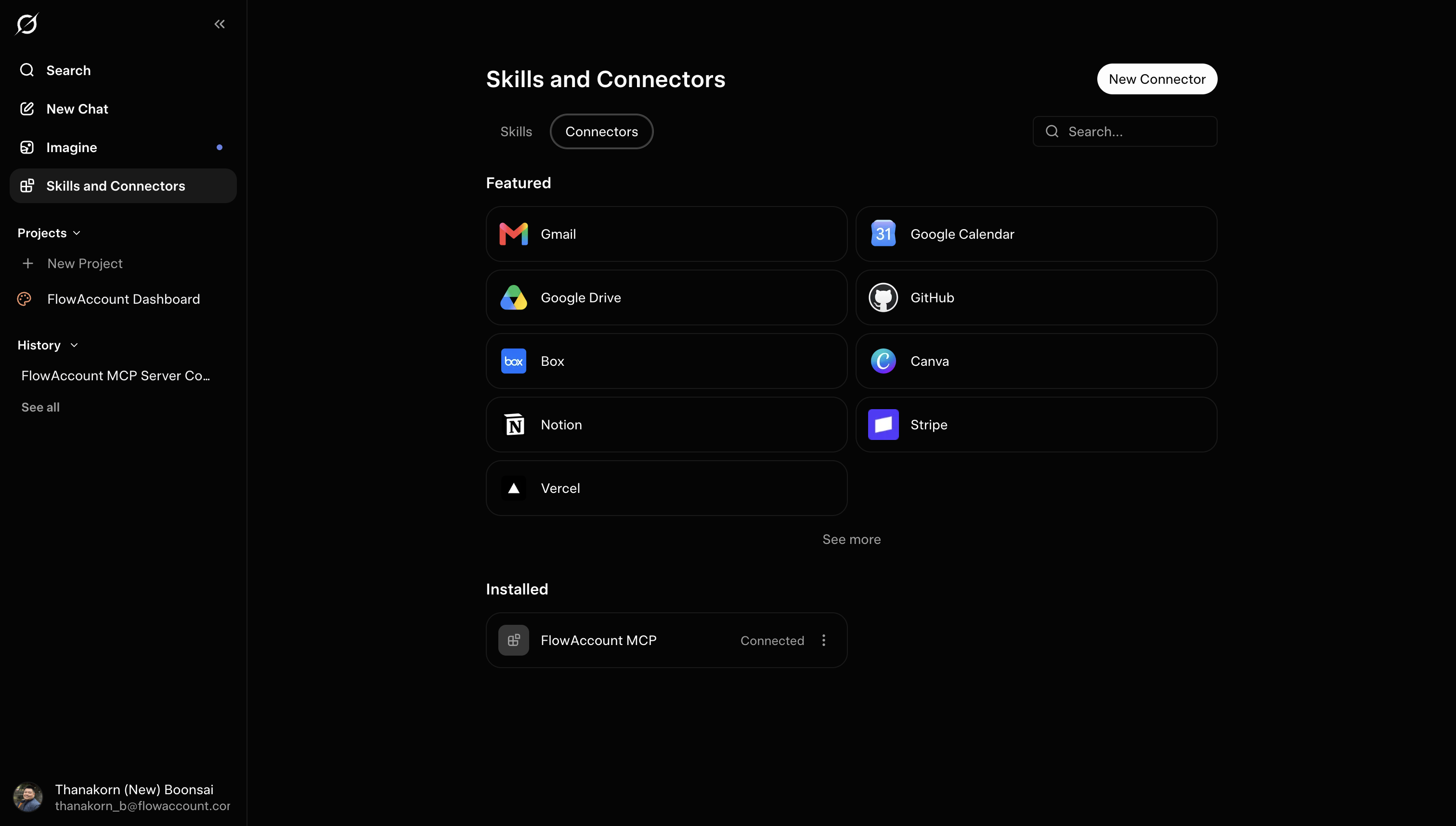
Click New Connector, then select Custom.
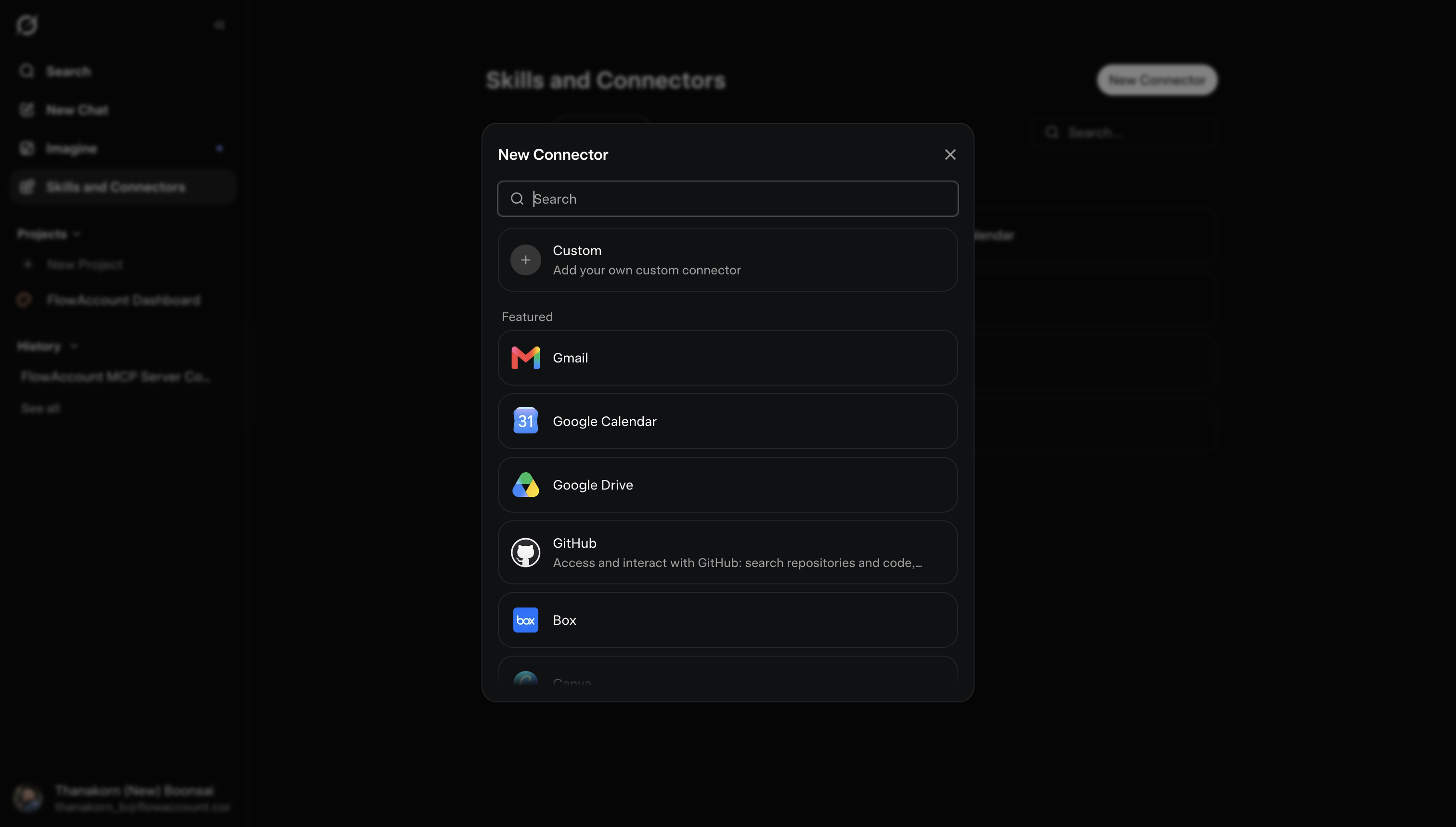
Enter the FlowAccount MCP server URL:
https://mcp.flowaccount.com/mcp.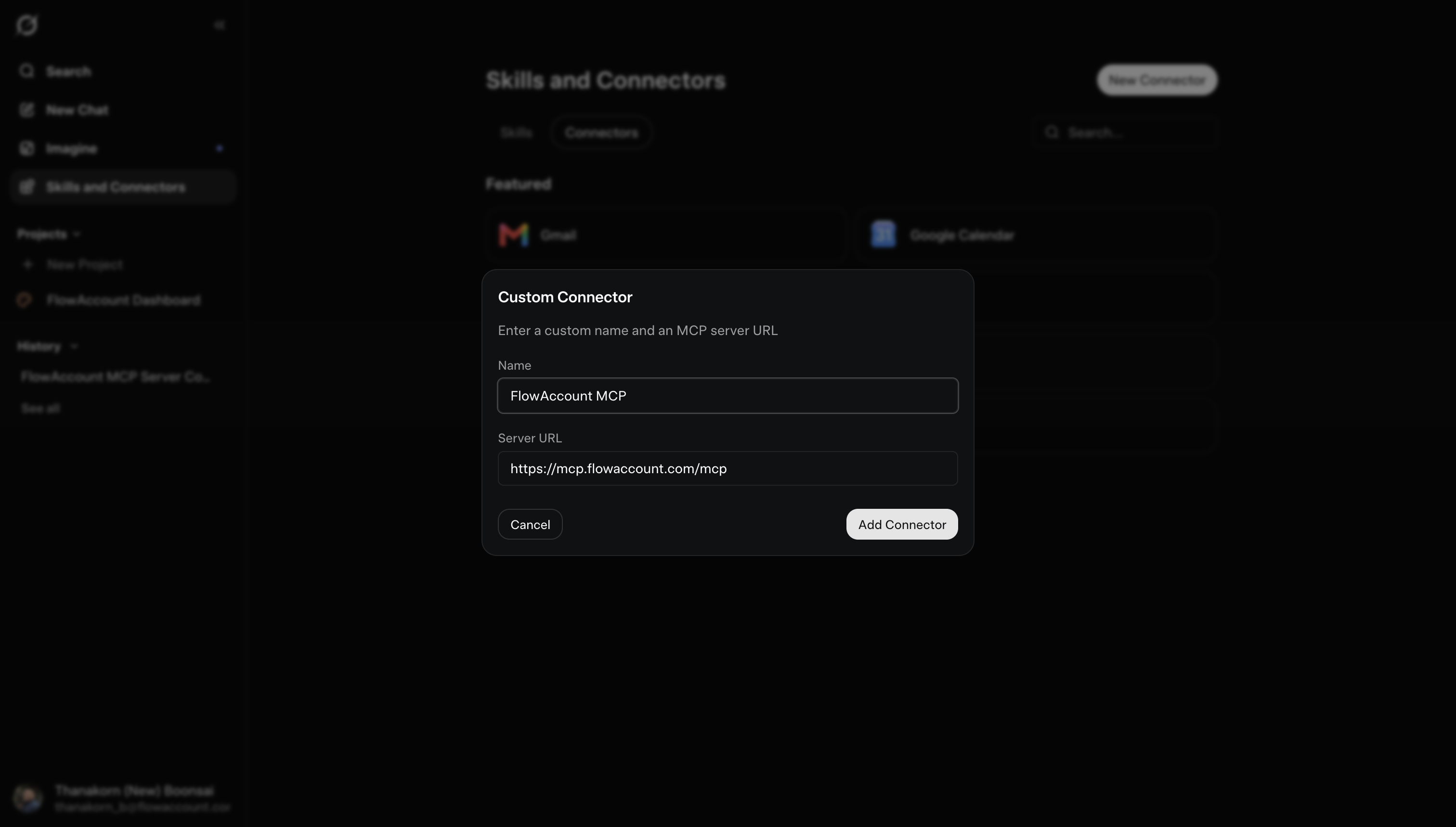
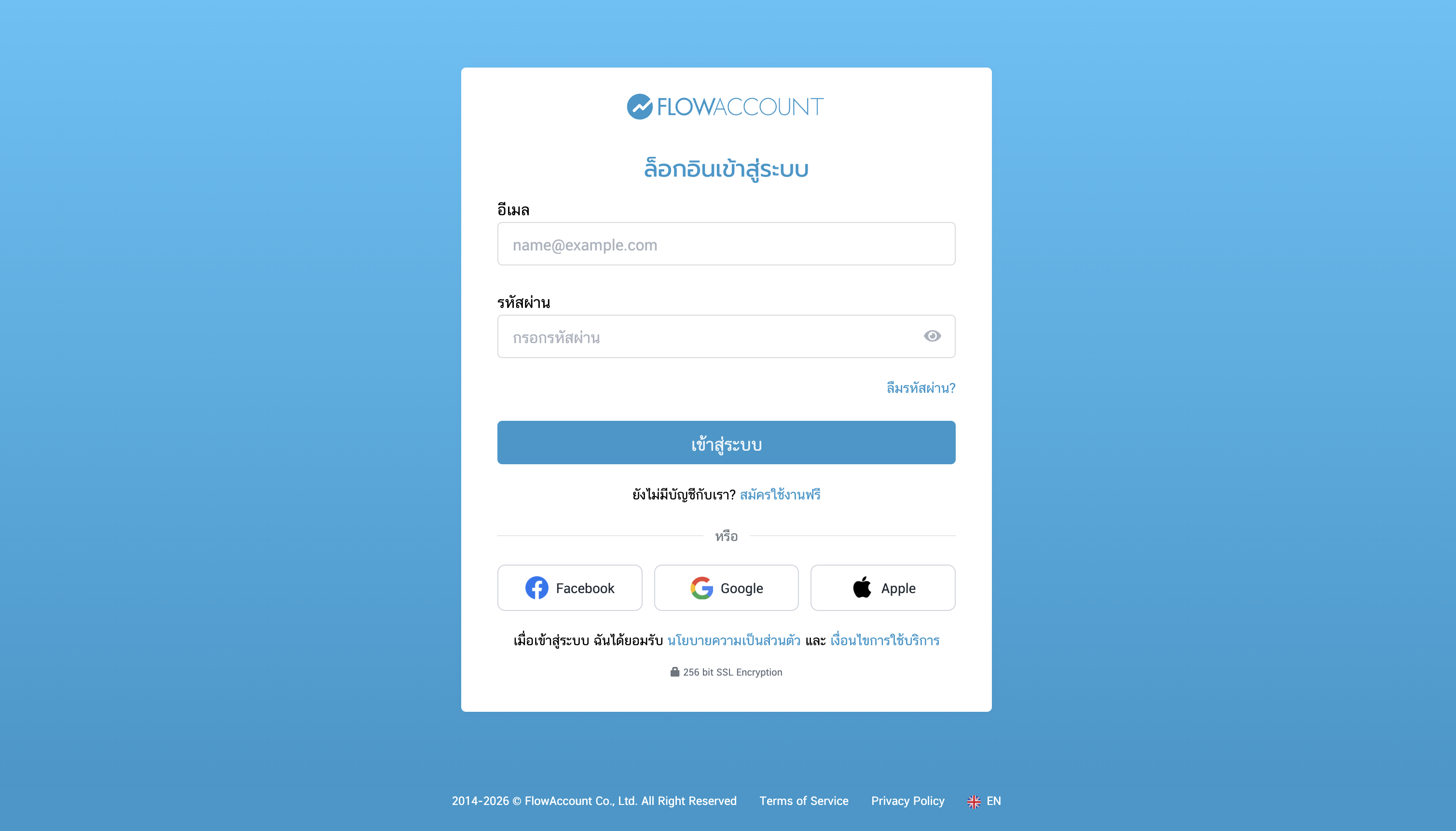
When prompted, sign in with your FlowAccount account and authorize access (OAuth 2.0).
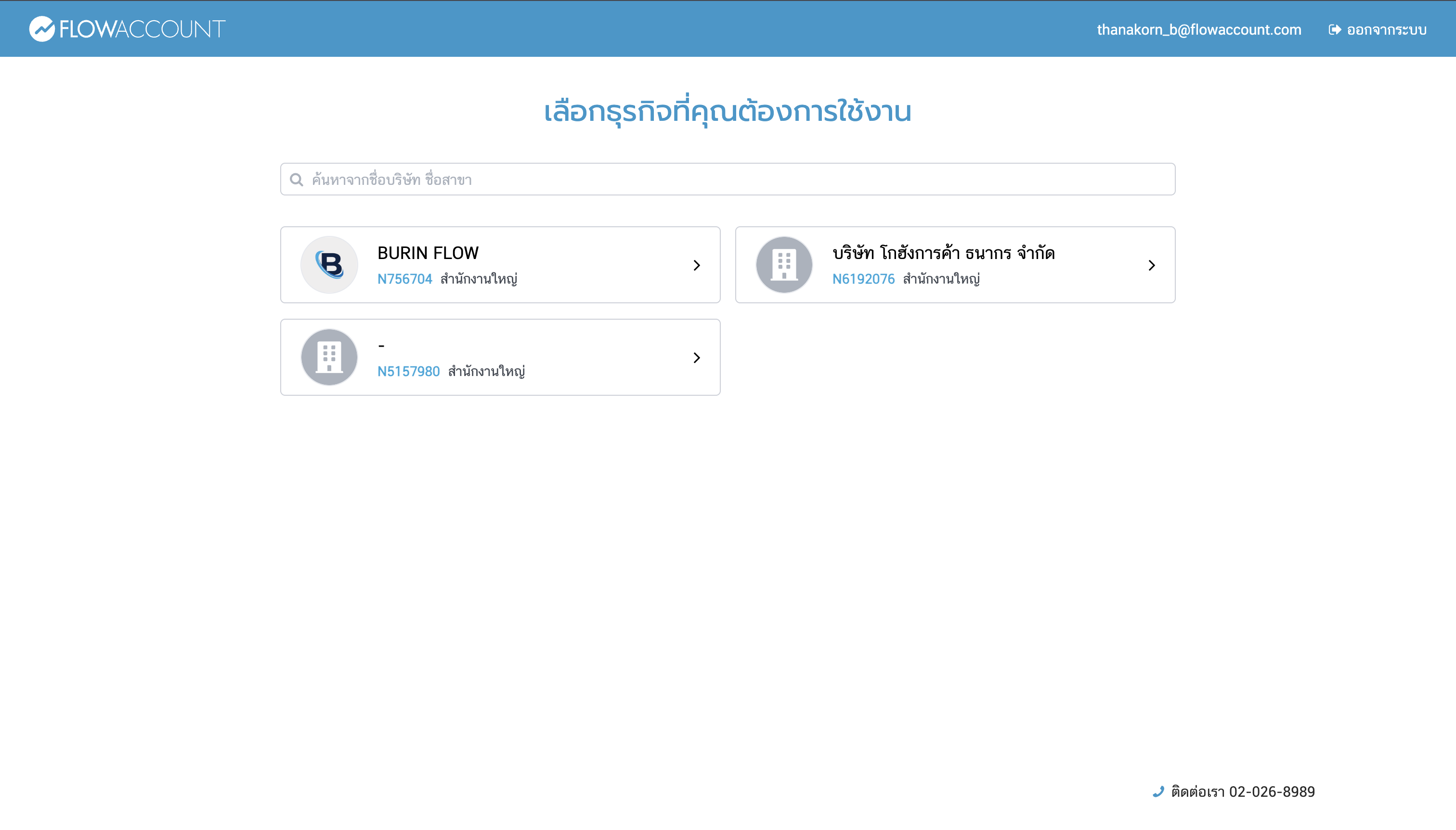
If you have access to more than one company, choose the company you want Grok to read from in the company picker.
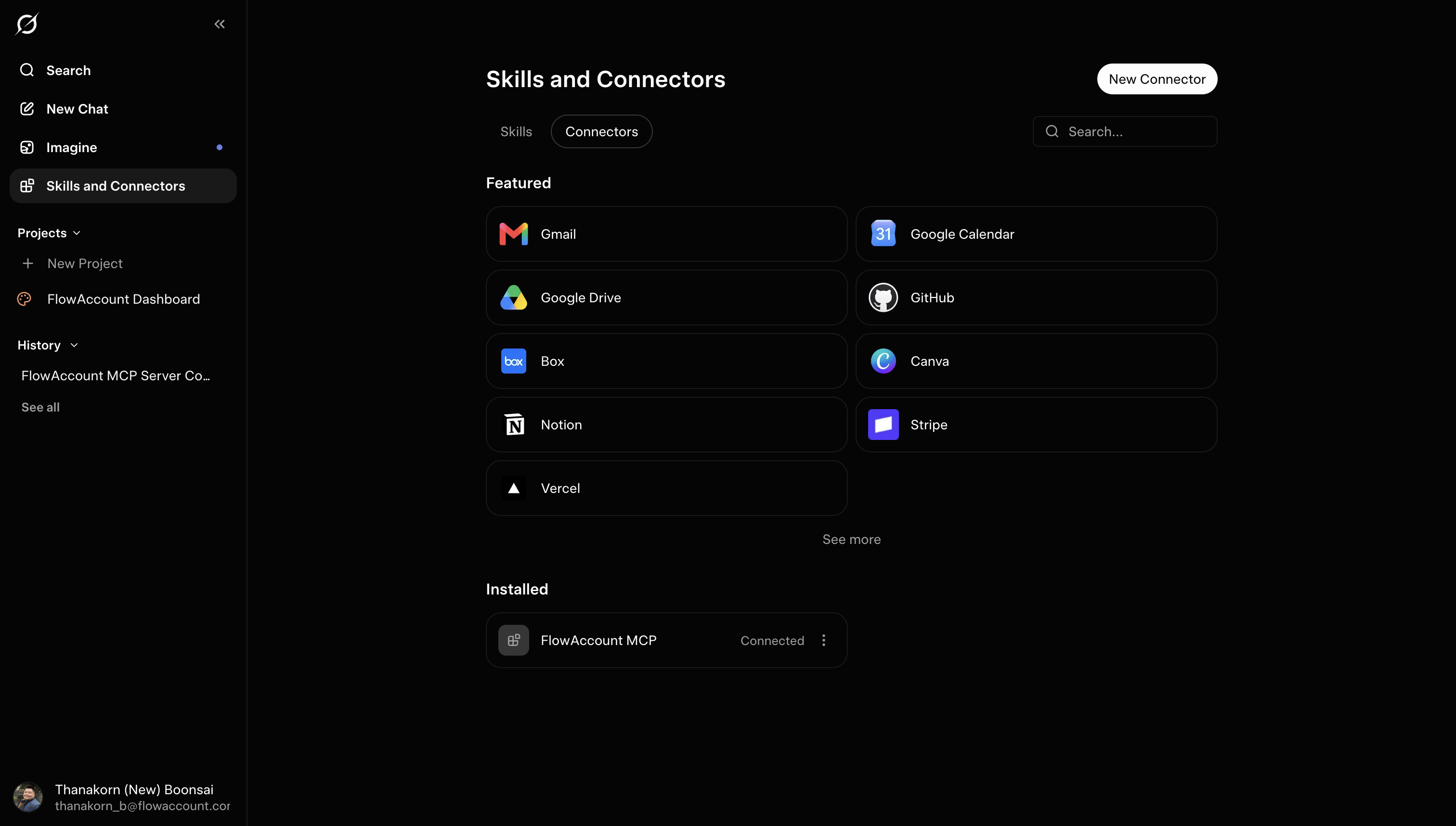
Grok discovers the tools your MCP server exposes and makes them available in conversations. Start a chat and ask about your finances.
To disconnect at any time, go to grok.com/skills-and-connectors, open FlowAccount, and remove it. (Team admins manage connectors for their organization from the same page via + Add Connector.)
Working with multiple companies
All tools are scoped to the one company you selected at login. If you ask about a different company, Grok flags the mismatch and returns data only for the connected company. To switch companies, remove the connector and add it again, then pick the other company at sign-in. (Switching company in the FlowAccount web app does not change the company connected in Grok.)
What you can do
The connector can read your data and create documents, but it cannot edit or delete existing records. Creating a document requires the matching create permission in your FlowAccount role — review anything it creates in FlowAccount. Common requests:
- Sales — "How much did I sell this month?" · "Show quotation QU-2026-001." · "Which invoices are still unpaid?" · "Create a tax invoice for ABC Co." · "Issue a cash invoice for ฿5,000."
- Expenses & purchases — "What did I spend on last month?" · "Show open purchase orders." · "What's outstanding to suppliers?" · "Record an expense of ฿1,500 for office supplies."
- Accounting & reports — "What's my P&L this year?" · "Show my balance sheet for last month." · "Give me the trial balance for this quarter." · "How much is overdue from customers?" · "Post a journal voucher for…"
- Inventory — "Which products are running low?" · "How much of SKU-100 is in the main warehouse?"
Grok pulls live data in real time and can create documents on your instruction. Review anything it creates in FlowAccount, and for decisions with financial, tax, or legal impact, verify the figures directly and consult a qualified accountant.
For accountants & bookkeeping firms
If you manage several clients, you can connect to one client's company at a time and ask about their books in plain language — no exporting reports. It's handy at month-end tax close: scan a trial balance for anomalies, review AR/AP aging, or pull a profit & loss statement before you close. To switch to another client, remove the connector and add it again.
Make sure you're authorized to access each client's data, and connect only companies you're responsible for. Because the connector can now create documents, double-check you're connected to the right company before asking it to create anything in a client's books.
Privacy & data handling
The connector reads only the accounting data needed to answer your request and does not access your chat history or your local files. Data is processed by xAI to answer your request. Whether xAI uses your data (including data pulled in through connectors) to train or improve its models depends on your Grok plan — the default differs between consumer accounts and enterprise/API terms, and consumer accounts can opt out in Settings > Data Controls. Check the current policy for your plan here: xAI Privacy Policy. FlowAccount handles your data under its Privacy Policy and does not sell your personal data. Contact: support@flowaccount.com. See the full Privacy Policy and Terms of Use.
Troubleshooting
- Can't add the connector — make sure you're signed in to grok.com. On team/enterprise accounts, an admin may need to allow the connector (or add the custom MCP server) from grok.com/skills-and-connectors > + Add Connector.
- Trouble connecting — make sure you're signed in to the correct FlowAccount user and company; if it fails, remove the connector and add it again.
- Grok isn't using my data — confirm the FlowAccount connector is connected on grok.com/skills-and-connectors, and phrase your question so it clearly relates to your books.
- Numbers look off — verify in FlowAccount first. For discrepancies, contact support (LiveChat, support@flowaccount.com, or 02-026-8989).
- The connector can't do what I asked — the connector currently supports reading data and creating documents; it can't edit or delete existing records, and some actions aren't available yet. If you have a use case you'd like the system to support, share your feedback with us directly via Live chat or mcp_support@flowaccount.com.
Note: if you connect data that includes personal information of third parties (for example, a client's customers or staff), please review FlowAccount's Privacy Policy and Terms of Use for how that data is handled.